Creating a Calendar Invitation in Spartan Mail Online (Office 365)
 Print
Print Email
EmailInstructions for creating a calendar invitation to other MSU users, groups, rooms, etc. within Spartan Mail (Office 365).
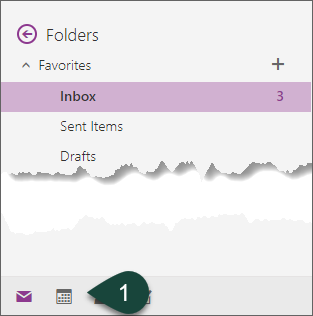
- Select the Calendar Icon at the bottom of the screen.
- Select New.
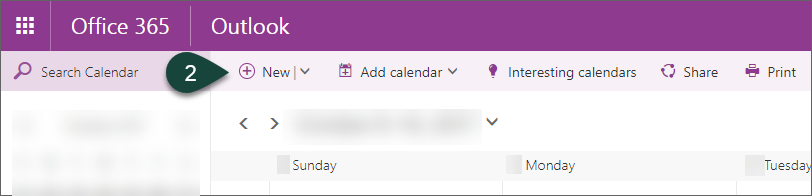
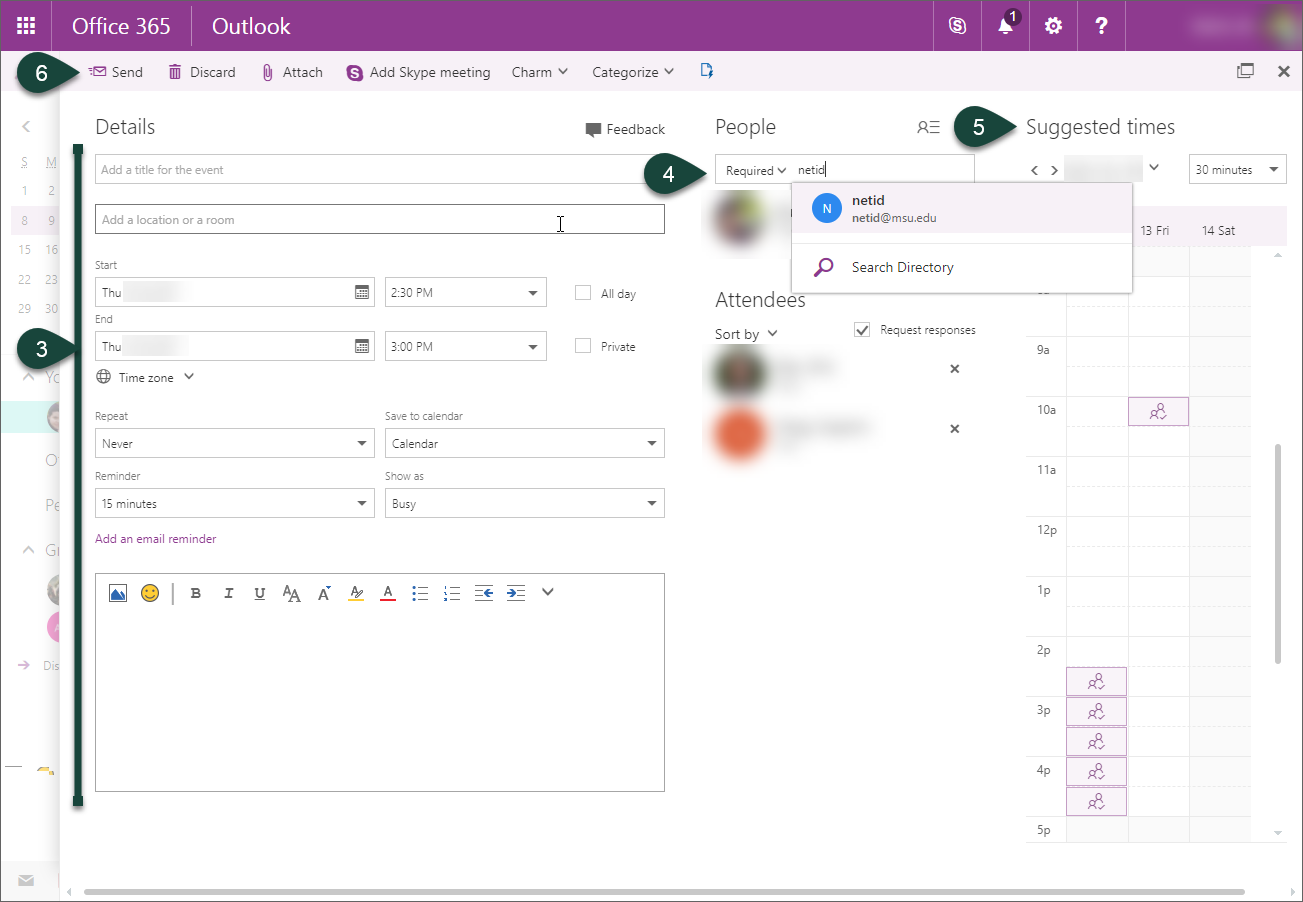
- Enter the Title, Date, Time, Location, etc.
- Enter the Required Attendees. The system will search for MSU users, groups, and rooms.
- Optional: The Suggested Times area shows free dates/times for all MSU users required to attend allowing you to select one in which all users are able to attend. This is only viewable on screens 1300 px or wider.
- Select Send.
Did you find this article useful?
You Might Also Be Interested In
-
In the Field: Jenn Phillips
Published on July 6, 2018
-
Employee Antivirus Perk
Published on September 18, 2023
-
Sending from an Alternate Email Address in Spartan Mail Online (Office 365)
Published on March 31, 2021


-
Mapping a Network Drive (Mac)
Published on June 4, 2020
-
Setting the Default Calendar on Apple Devices (Office 365)
Published on April 22, 2021
-
Sending from an Alternate Email Address in Outlook
Published on March 31, 2021