Downloading and Installing Office 365 Software for Mac
 Print
Print Email
EmailInstructions for installing the Office 365 version of Microsoft Office for Mac.
- Go to the Office 365 Portal.
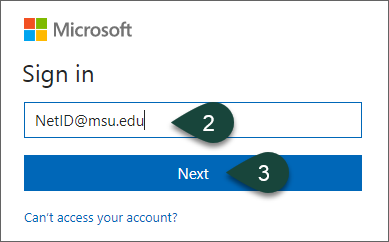
- Enter your MSU Email.
- Select Next.
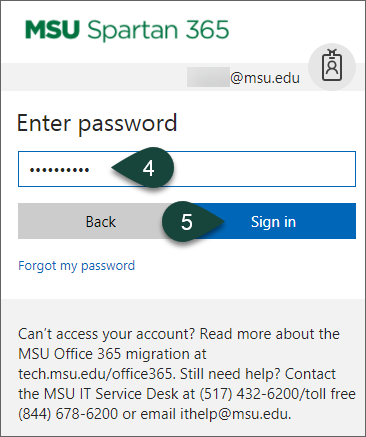
- Enter your MSU Password.
- Select Sign In.
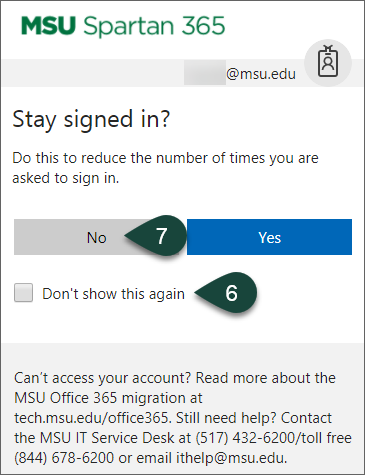
- Select the Checkbox for Don't show this again.
- Select No.
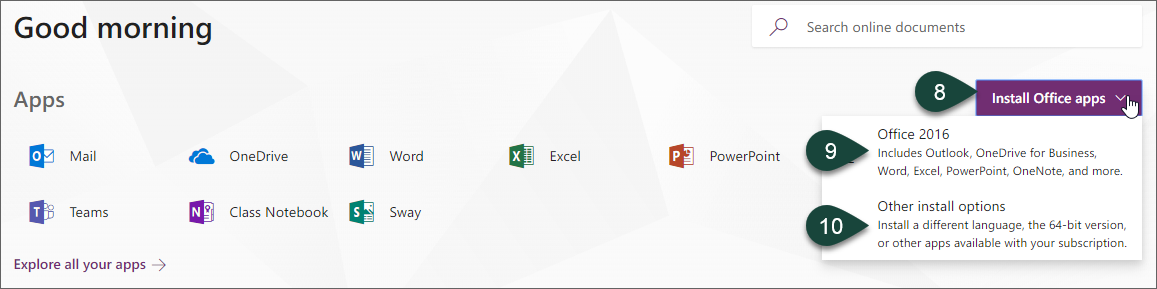
- Select Install Office Apps.
- Select Office 2016.
- If you need a different language or the 64 bit version, please select Other install options.
- Save the Install File.
- Select the Install File and follow the prompts to begin installation.
- Select Continue.
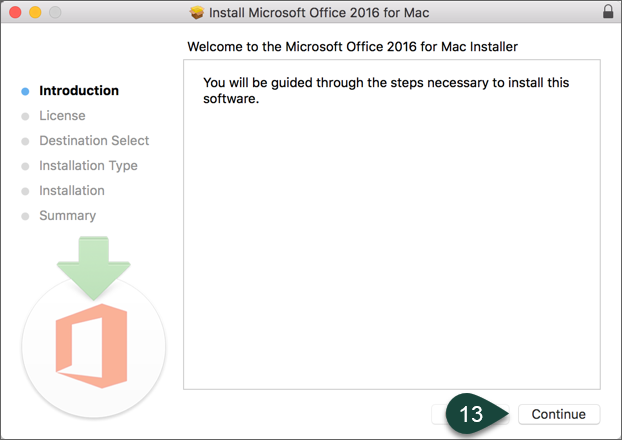
- Select Continue.
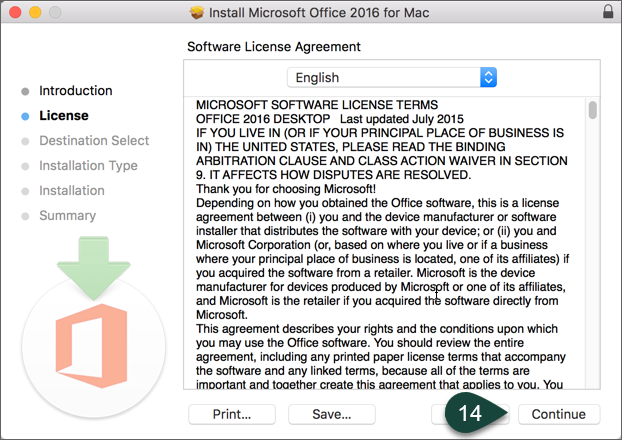
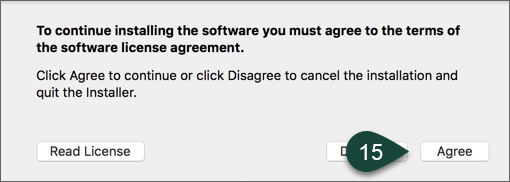
- Select Accept.
- Select Install.
NOTE: You may need to input your Mac Profile Password to approve the installation.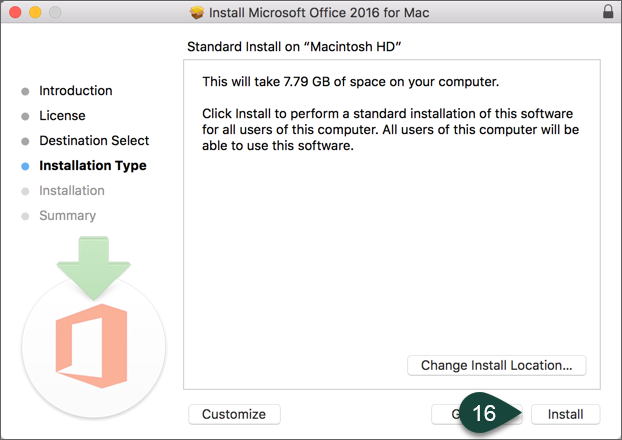
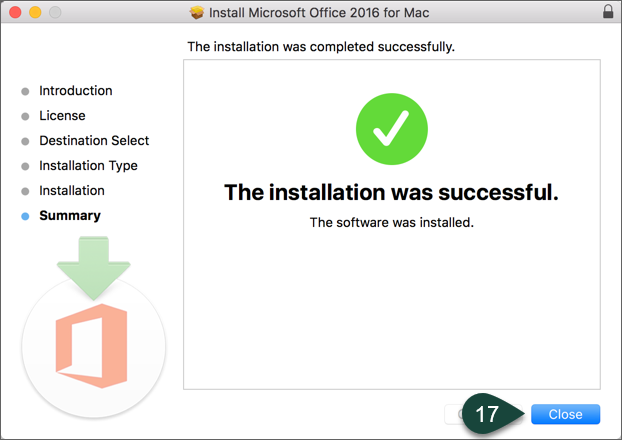
- Select Close.