Sharing Your Calendar in Spartan Mail Online (Office 365)
 Print
Print Email
EmailInstructions for sending a link to another user to share your calendar with them in Spartan Mail (Office 365).
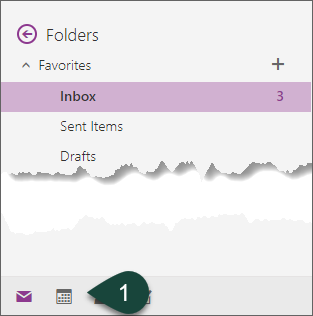
- Select the Calendar Icon at the bottom of the screen.
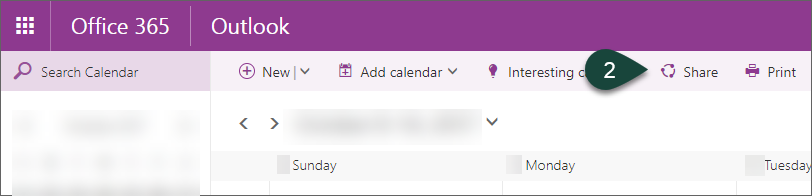
- Select Share.
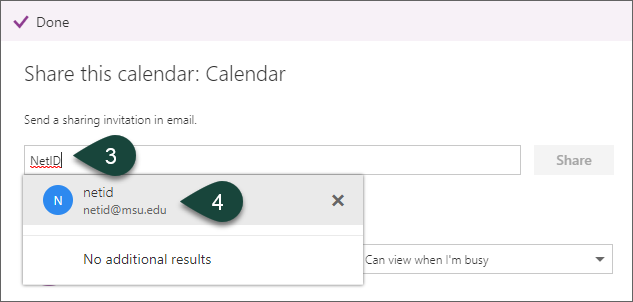
- Enter the NetID of the person with whom you are sharing your calendar.
- Select the User from the pop up list.
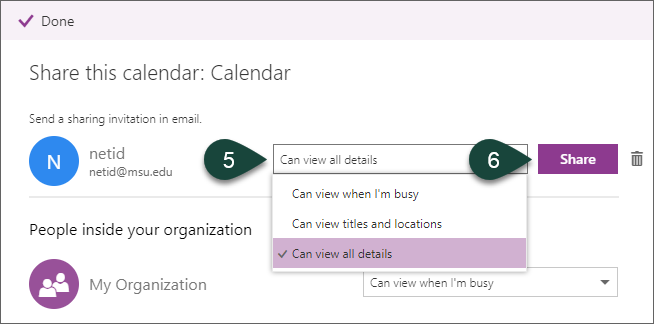
- Select the Viewing Level you wish the user to have.
- Select Share.
- The user will receive an email with a link they can click on to add your calendar to their list.
Did you find this article useful?
You Might Also Be Interested In
-
In the Field: Jenn Phillips
Published on July 6, 2018
-
Employee Antivirus Perk
Published on September 18, 2023
-
Sending from an Alternate Email Address in Spartan Mail Online (Office 365)
Published on March 31, 2021


-
Mapping a Network Drive (Mac)
Published on June 4, 2020
-
Setting the Default Calendar on Apple Devices (Office 365)
Published on April 22, 2021
-
Sending from an Alternate Email Address in Outlook
Published on March 31, 2021