Configuring Outlook for Mac
 Print
Print Email
EmailInstructions for using the automatic configuration for Outlook for Mac with your MSU Office 365 account.
- Open Outlook 2016 for Mac.
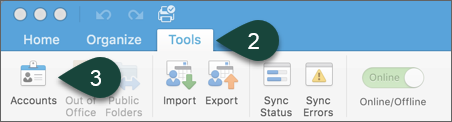
- Select Tools.
- Select Accounts.
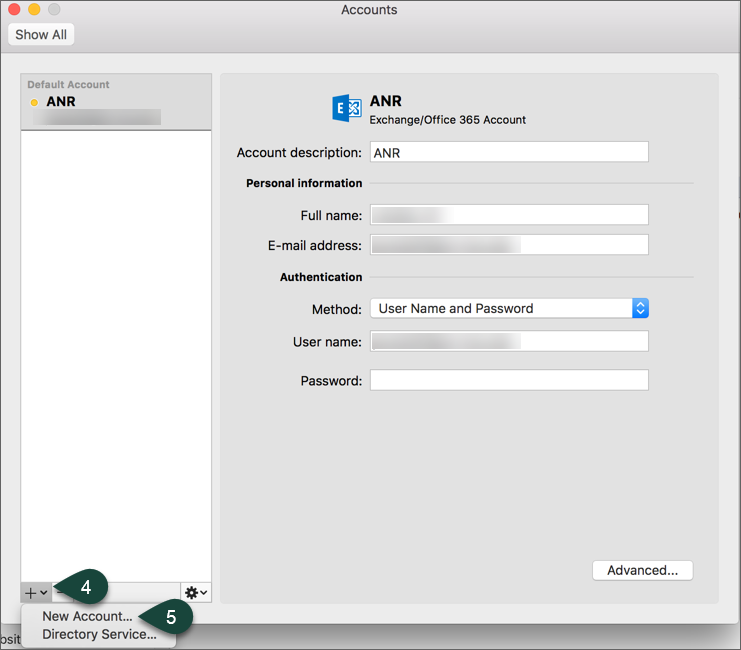
- Select the +.
- Select New Account.
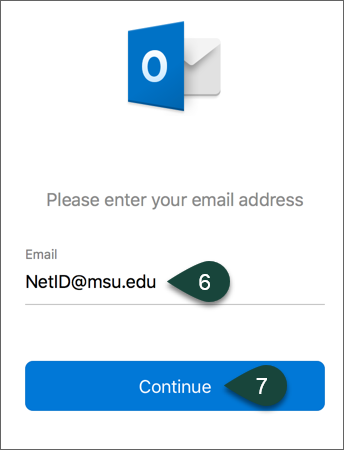
- Enter your @msu.edu Email Address.
- Select Continue.
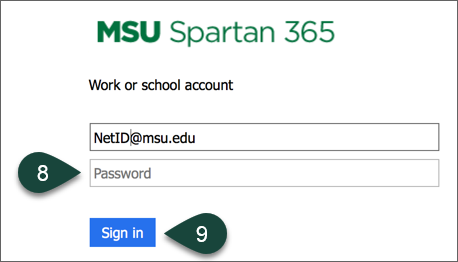
- Enter you MSU Password.
- Select Sign In.
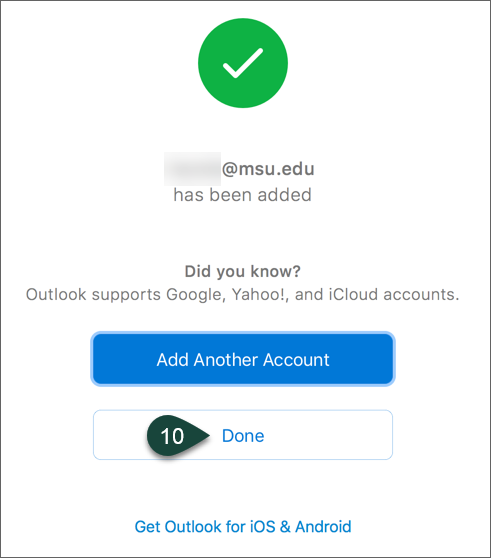
- Select Done.
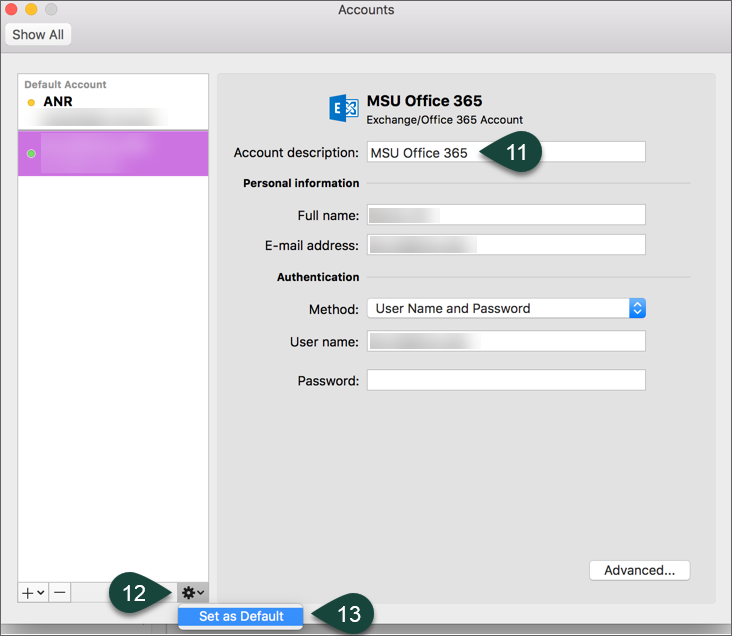
- Change the account description to MSU Office 365.
- Select the Gear Icon.
- Select Set as Default.
Did you find this article useful?
You Might Also Be Interested In
-
Sending from an Alternate Email Address in Outlook for Mac
Published on March 31, 2021
-
Delaying Delivery in Outlook for Mac
Published on September 27, 2018
-
Setting Rules for Automatic Email Handling in Outlook for Mac
Published on September 27, 2018
-
Setting the Default Font for Email Messages in Outlook for Mac
Published on September 27, 2018
-
Creating and Setting Signatures in Outlook for Mac
Published on September 27, 2018
-
Using Room and Equipment Calendars in Outlook for Mac
Published on September 27, 2018