Sending from an Alternate Email Address in Outlook for Mac
 Print
Print Email
EmailInstructions for how to send an email from a different email address you have access to within Outlook for Mac.
- Open Outlook for Mac.
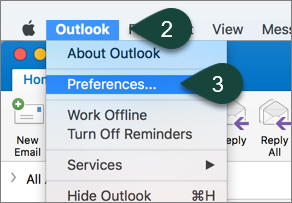
- Select Outlook from the Toolbar.
- Select Preferences.
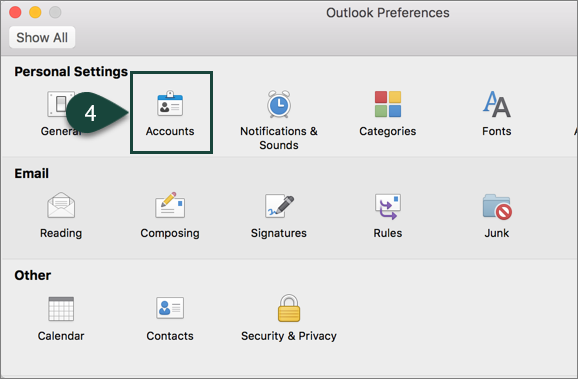
- Select Accounts.
- Select Advanced.
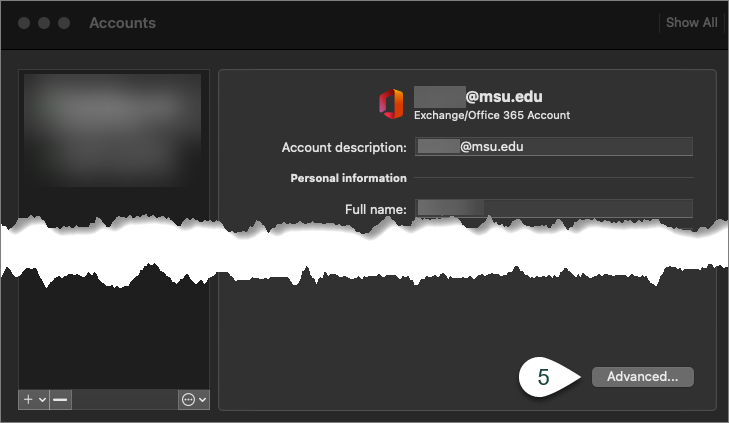
- Select Delegates.
- Select the + under the Open these additional mailboxes section.
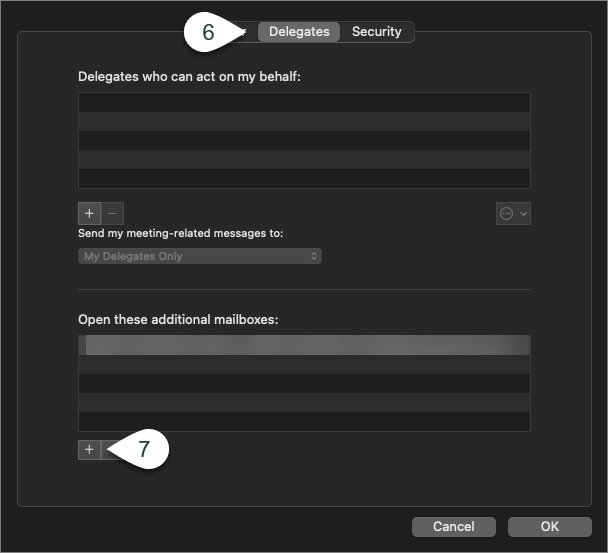
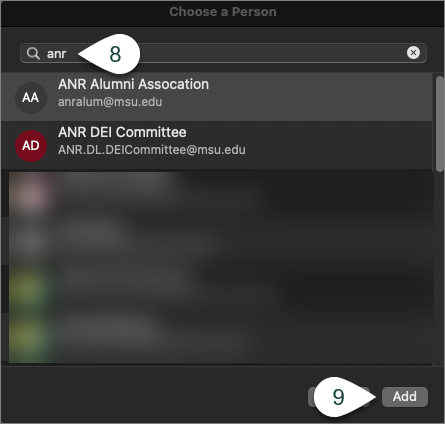
- Search for the Email Address you wish to send from.
NOTE: You will need to ensure you have access to send from that email address. - Select Add.
- Open a New Message.
- Select the Alternate Email Address from the From Drop-Down menu.
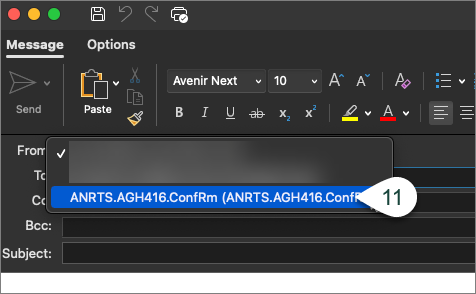
- Continue Entering the rest of your email.
Did you find this article useful?
You Might Also Be Interested In
-
Delaying Delivery in Outlook for Mac
Published on September 27, 2018
-
Setting Rules for Automatic Email Handling in Outlook for Mac
Published on September 27, 2018
-
Setting the Default Font for Email Messages in Outlook for Mac
Published on September 27, 2018
-
Creating and Setting Signatures in Outlook for Mac
Published on September 27, 2018
-
Using Room and Equipment Calendars in Outlook for Mac
Published on September 27, 2018
-
Setting Out of Office Replies in Outlook for Mac
Published on September 27, 2018